 CollectContent
 The project calendar gives you a due-date view of everything in a project, so you can see what's coming up and spot gaps before they become deadlines missed.
Opening the calendar
- Visit your Projects page and select a project. You will need to select a team if you haven't done so already.
- Select Calendar: Choose the Calendar tab from the project navigation.
Reading the calendar
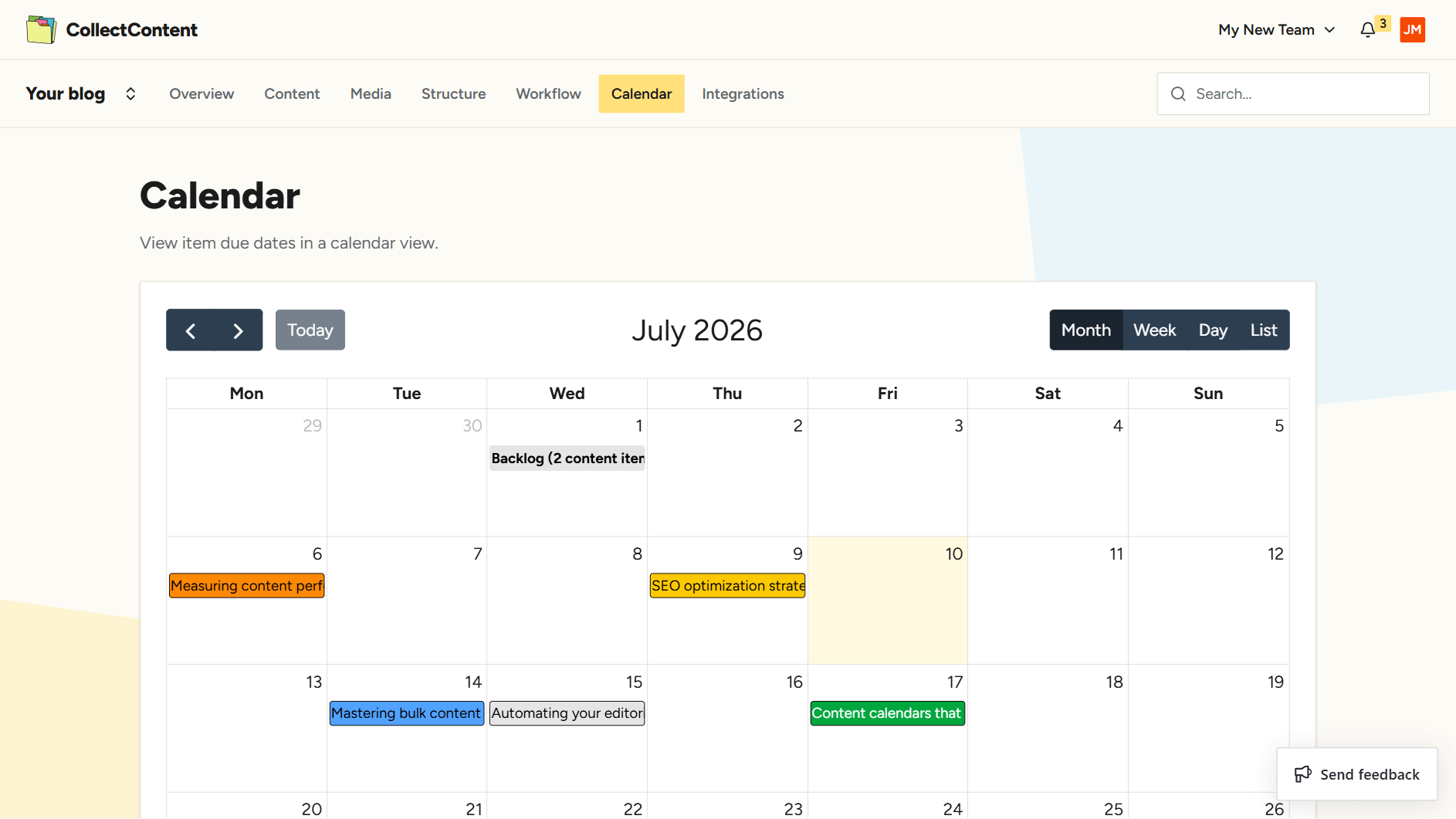
Each content item with a due date appears on its due date. Items are colour-coded by workflow stage, so you can tell what's still in progress versus ready to publish without opening a single item. Selecting the item will open the content editor.
Workflow stages that have a due date will also be shown on the calendar. Selecting a workflow stage will show the Content Hierarchy filtered by that stage.
Filtering the calendar
Use the filter bar above the calendar to narrow down what you see:
- Forwards and Backwards: The arrow icons at the top-left allow you to move forwards and backwards in the timeline.
- Calendar view: Toggle among month, week, day, or list views.
Jumping into an item
Select any item on the calendar to open it directly in the item editor. From there, you can make edits, leave comments or move it to its next workflow stage, then return to the calendar to keep planning.
Or, select any workflow stage to show the Content Hierarchy filtered by that stage.
Good to know
Items or workflow stages without a due date won't appear on the calendar. Add a due date to bring it into view.