 CollectContent
 Comments let your team give feedback on specific fields, discuss decisions and track outstanding actions, all without leaving the content item.
Viewing comments
Comments in the editor are attached to content fields. You can view comments for a particular content field by clicking the comments button, which will open a popover showing the different comment threads left on that content field. The comment count indicator on the content field shows how many threads exist.
You can also view all comment threads for a piece of content:
- Open your content item.
- In the top bar click the comments button.
- The comments popover will open, showing all comments left on your content item.
- Click a comment to scroll down to the relevant content field.
- The comment thread will open automatically, showing the original comment and replies.
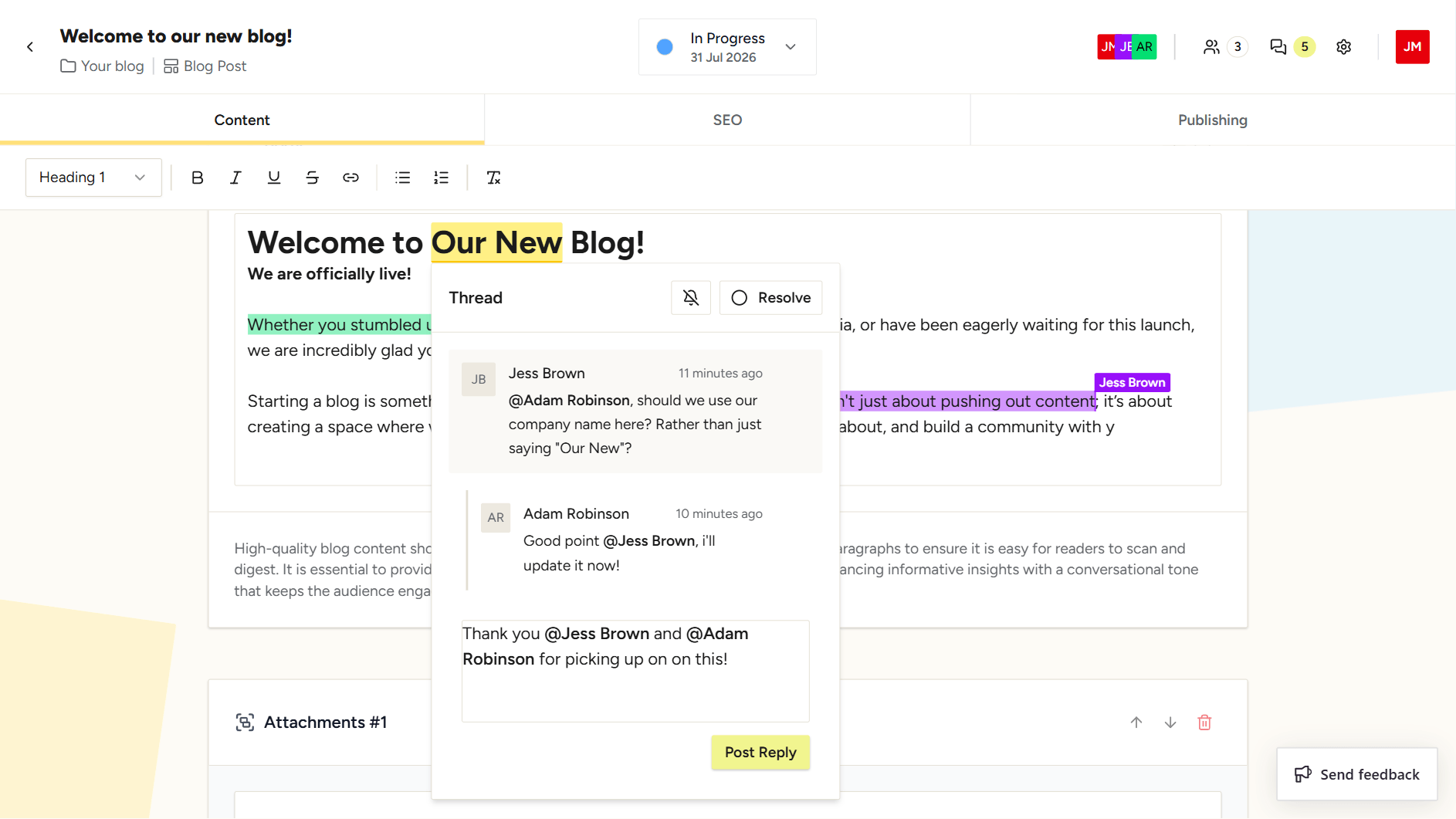
Leaving a comment
Comments in the editor are attached to content fields. You can leave a comment for a particular field by either highlighting a selection within a text field, or by:
- Open your content item.
- Click the comments button at the top of the specific content field that you wish to add a comment to.
- Click the new comment button to open the compose view.
- Write your comment, you can type
@followed by a team member's name to mention them directly. They'll receive a notification with a link to the comment. - Click post comment to save the comment.
Editing comments
If you are the author of a comment, you can edit a comment. Once edited, the comment will be marked as "edited".
You can edit a comment by:
- Open the comment thread that contains the comment you wish to edit, see "Viewing comments" for help.
- Hover over the comment you wish to edit.
- Click the menu button to open a list of options.
- Click the Edit menu option.
- Edit your comment within the modal that opens.
- Click the save button.
Good to know
Only the author can edit a comment.
Deleting comments
The author, team owner or "Administrators" can delete comments. Deleting a comment is permanent and will also delete any replies.
You can delete a comment by:
- Open the comment thread that contains the comment you wish to delete, see "Viewing comments" for help.
- Hover over the comment you wish to delete.
- Click the menu button to open a list of options.
- Click the Delete menu option.
- Confirm you wish to delete the comment.
Good to know
Only the author, team owner or "Administrators" can delete comments.
Replying to comments
You can reply to a comment by:
- Open the comment thread that contains the comment you wish to reply to, see "Viewing comments" for help.
- Write your reply, you can type
@followed by a team member's name to mention them directly. They'll receive a notification with a link to the comment. - Click post reply to save your reply.
Resolving and reopening comments
Resolving comments signals that feedback has been addressed, keeping your item's comment panel focused on outstanding actions.
You can resolve or reopen a comment thread by:
- Open the comment thread that contains the comment you wish to reply to, see "Viewing comments" for help.
- In the comment thread, you can click the "Resolve" button to resolve a comment thread, or click the "Resolved" button to reopen a comment thread.
Good to know
Any team member can resolve or reopen a comment, it's not restricted to the comment author or Administrators.
Subscribing to comments
Subscribing to comments allows you to be notified of any replies on a comment thread, even if you have not left a comment or reply yourself.
You can subscribe, or unsubscribe, from a comment by:
- Open the comment thread that contains the comment you wish to reply to, see "Viewing comments" for help.
- In the comment thread, you can toggle the "Bell" button to either subscribe or unsubscribe from comment updates.